
Extract data from unstructured documents into Excel using OCR
How $DocInterpreter is solving the OCR's layout problem?
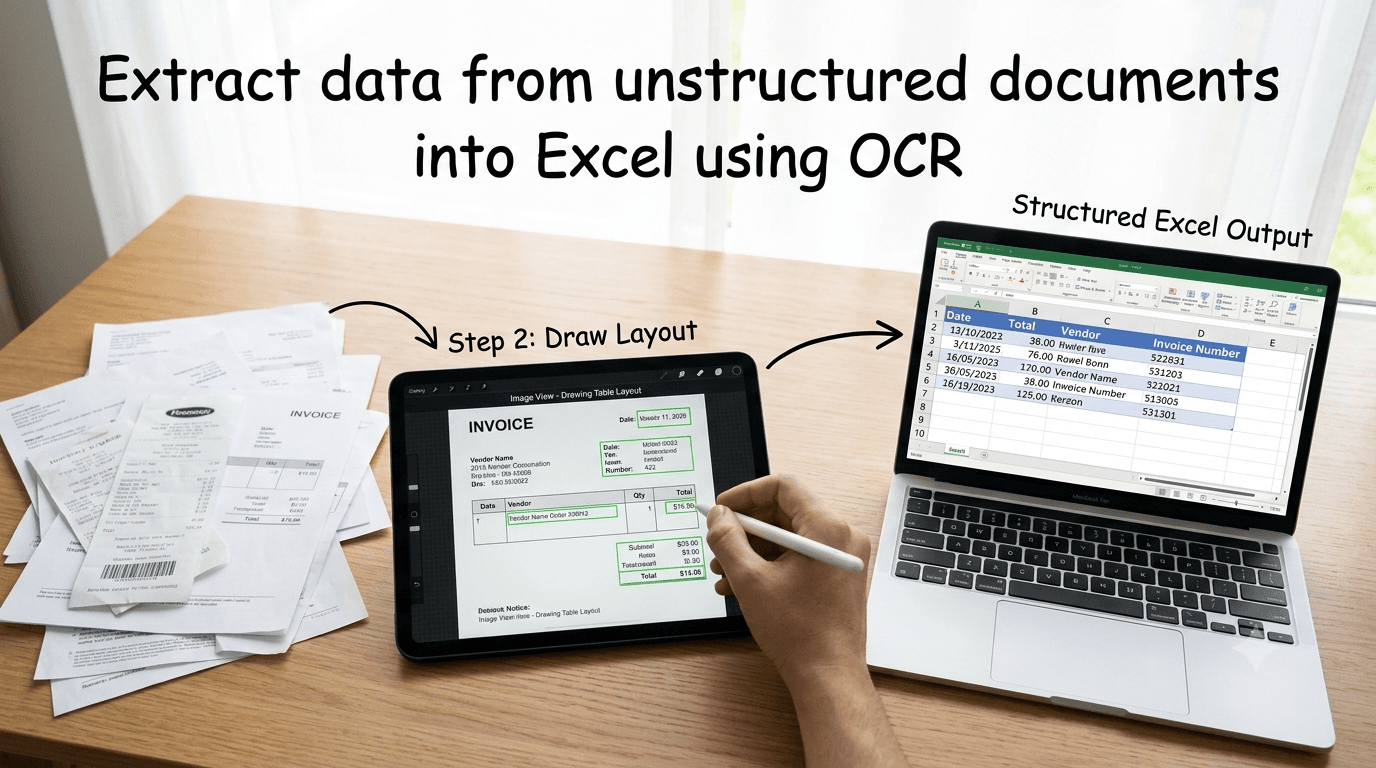
OCR converts images of text into flat, unorganized digital text files. It fails when to take into consideration the layout of the data in the document.
How DocInterpreter solved the layout problem?
We do this in three simple and easy steps:
- Upload the document: First, you upload the document (PDFs, Scanned PDFs, images such as JPG or PNG) and DocInterpreter extracts the data from the document using OCR and displays the original document to you on a canvas.
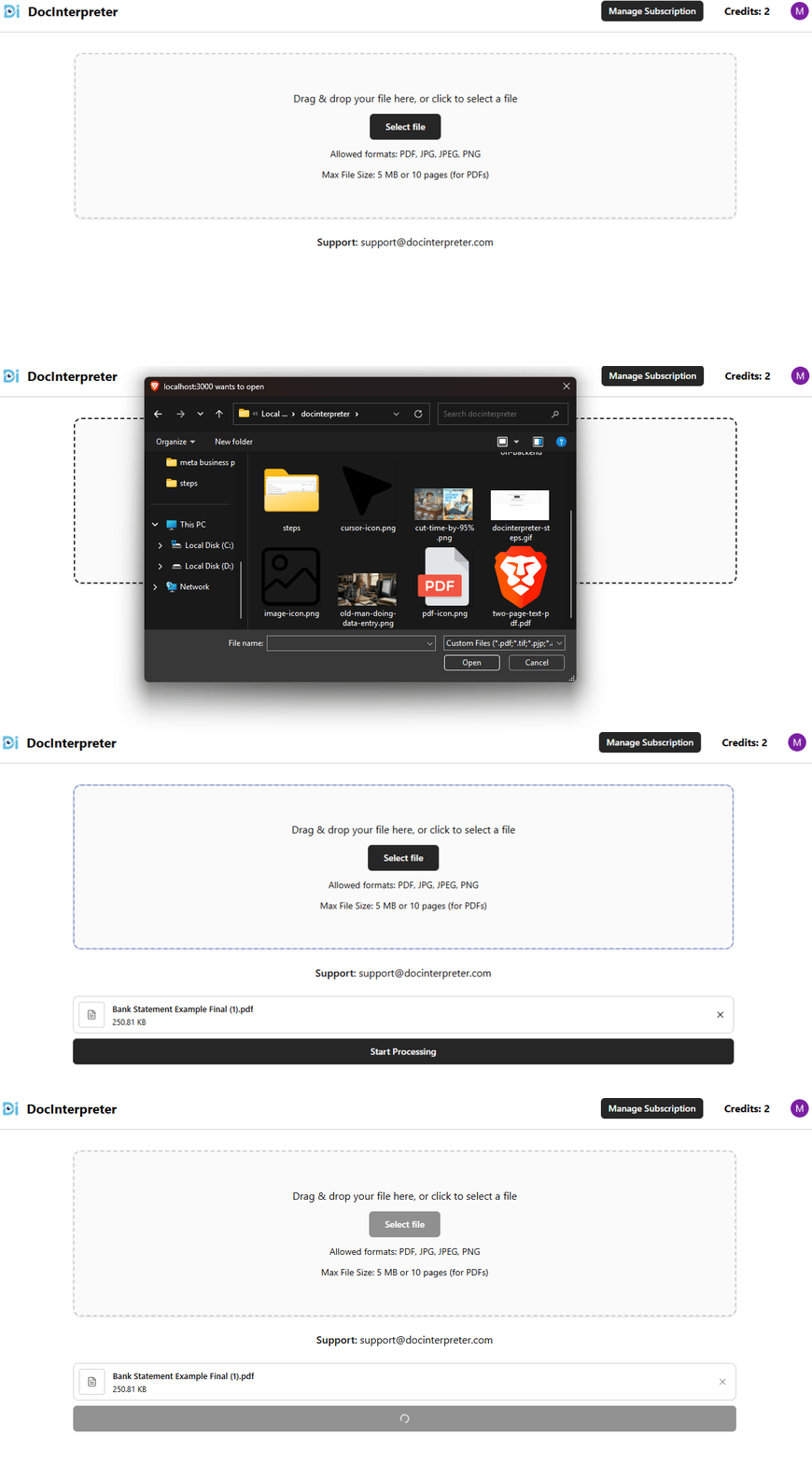
Upload your file to DocInterpreter. - Draw the layout of the output table: In the second step, you draw the layout of your output table onto the document.
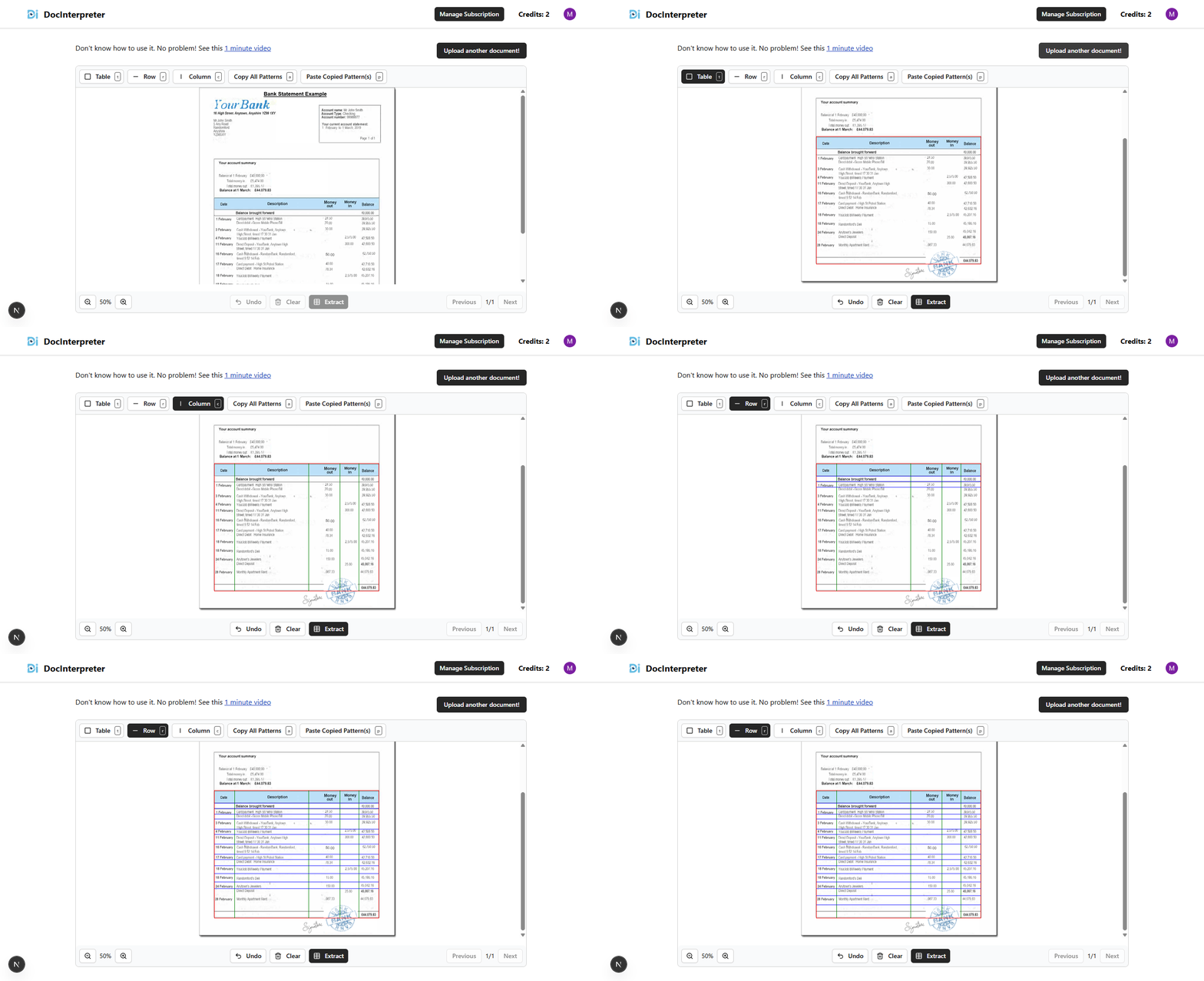
Draw the layout of the table on the upload file. Extract the results: In the final step, you click the
Extractbutton and DocInterpreter will fit the extracted data in your hand-drawn layout and show you the result under the canvas. You can download the results in CSV and Excel formats.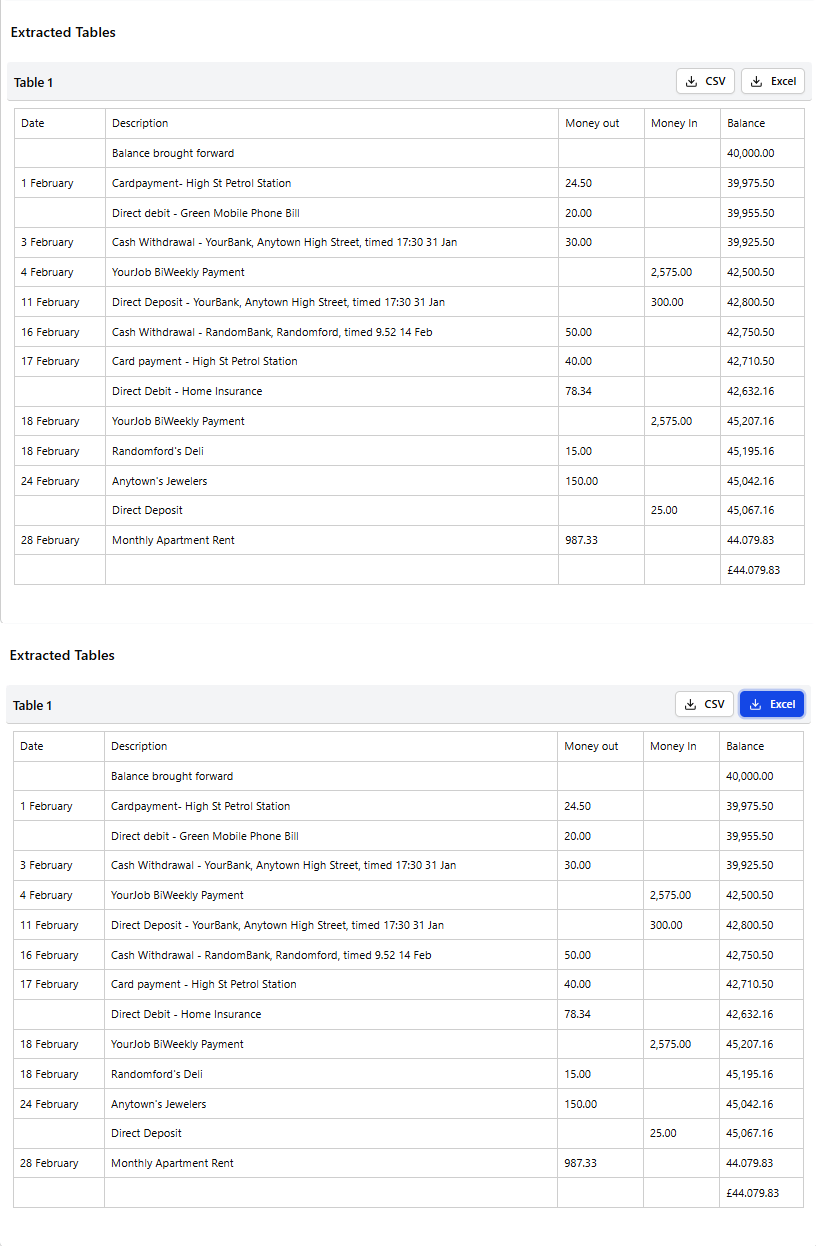
Download the results in CSV or Excel format.
You can sign up for free (no credit card required) and you will get 5 pages for free to check if this works for you.
Stop wasting hours on manual entry. Start your free trial at docinterpreter.com today and process your first 5 pages for free—no credit card required.
Ready to automate your data entry?
Process your first 5 pages for free — no credit card required. See results in minutes, not hours.
Get Started