
Automate Data Entry using AI
I will show you how you can automate 95% of your data entry work

If data entry is your Day job or a significant part of your job, you know how boring and time consuming it is. In this age of AI, when AI is helping us in tons of things, why not data entry?
If you also want to make data entry less boring and time consuming then you have come to a right place. I'll show you how to extract data from PDFs (both text-based and scanned) and images (JPG and PNG) using DocInterpreter.
You can do it in 3 simple steps:
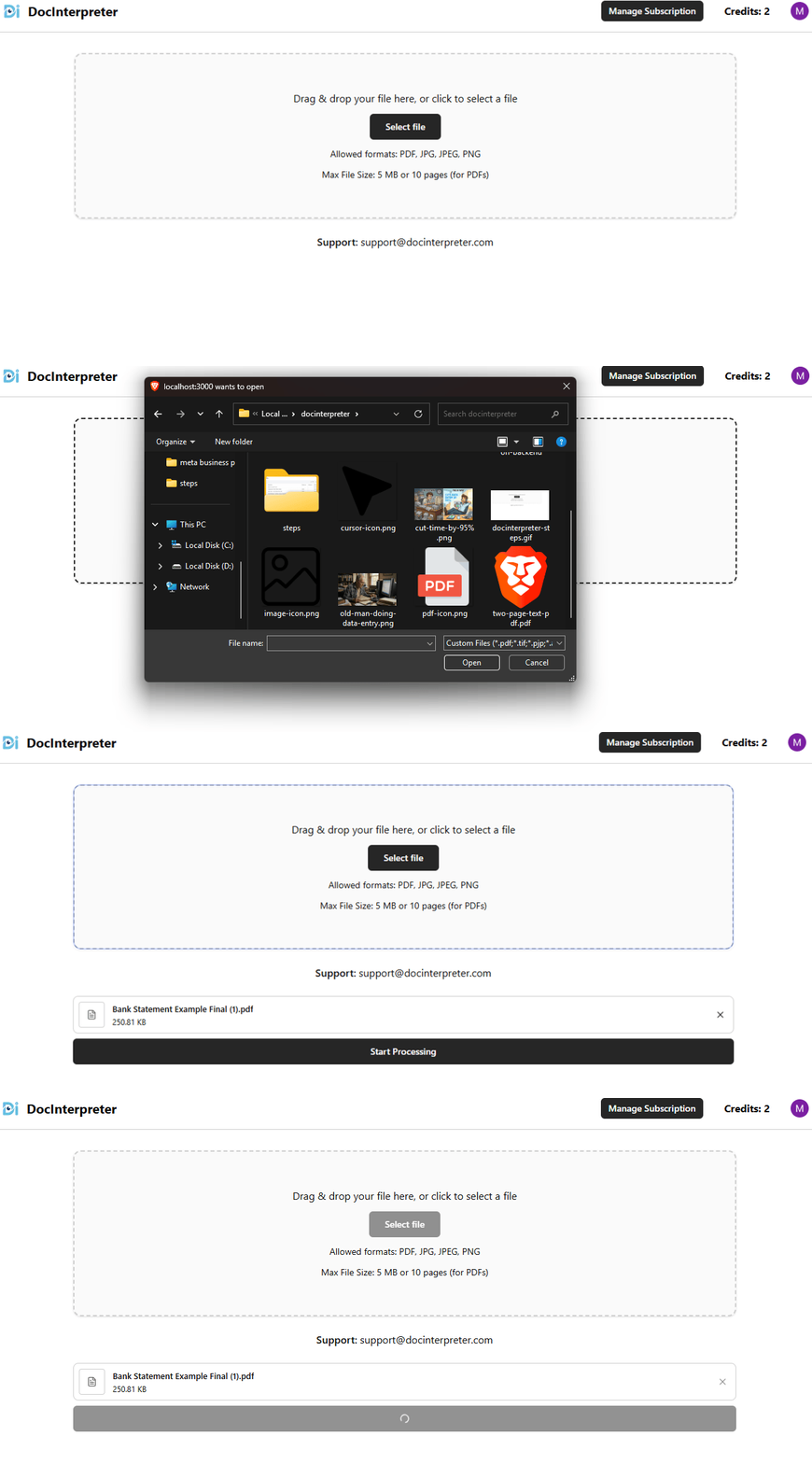
Step 1: Upload the file
Upload your file. The file can be an image (JPG or PNG) or a PDF. We support both text based and scanned PDFs.
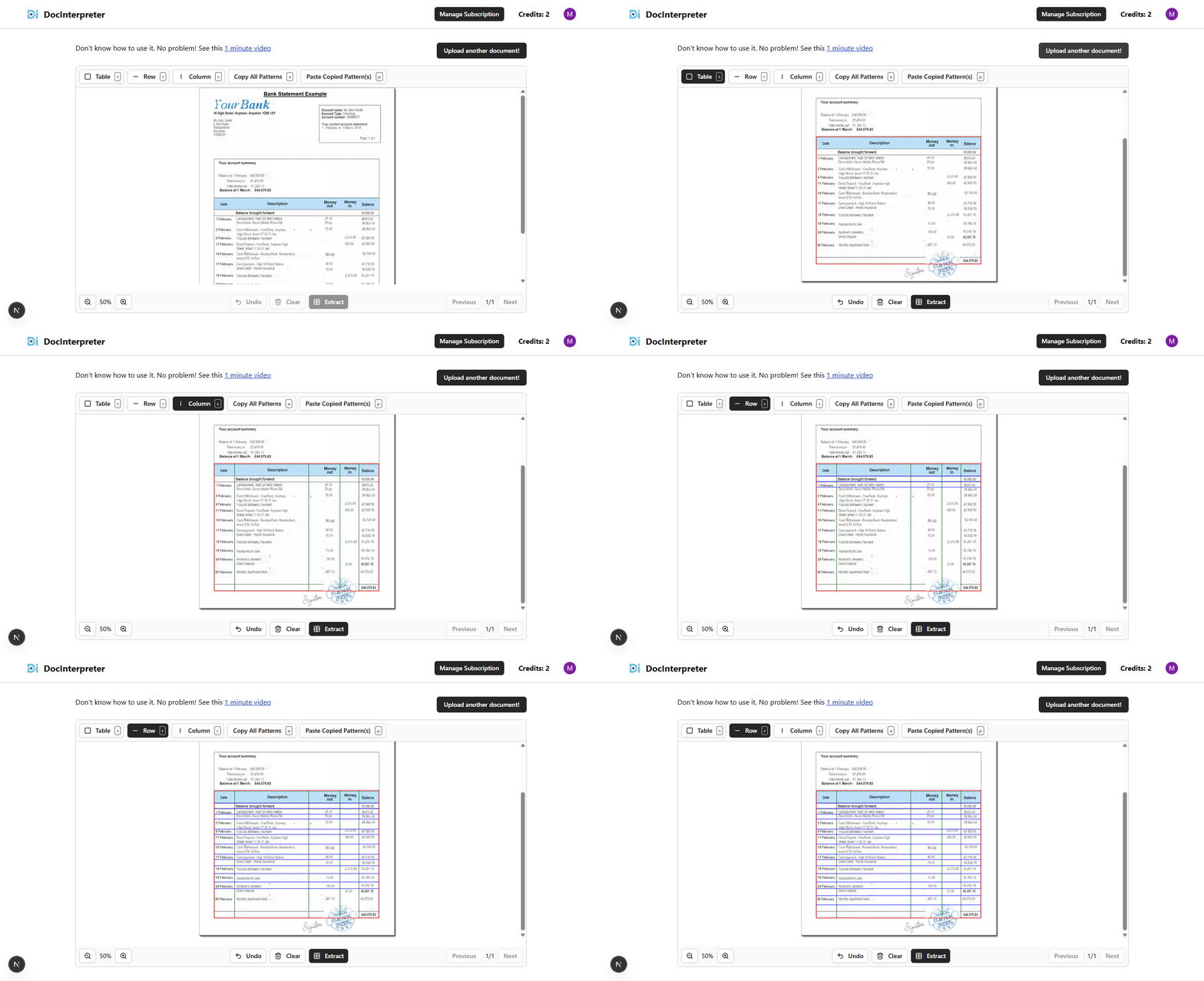
Step 2: Draw the layout of the table
Next, draw the layout of the table you want to extract data in. You can draw multiple tables in a single file.
Step 3: Download the results
After drawing the layout, click the "Extract" button and download the results in either CSV or Excel format.
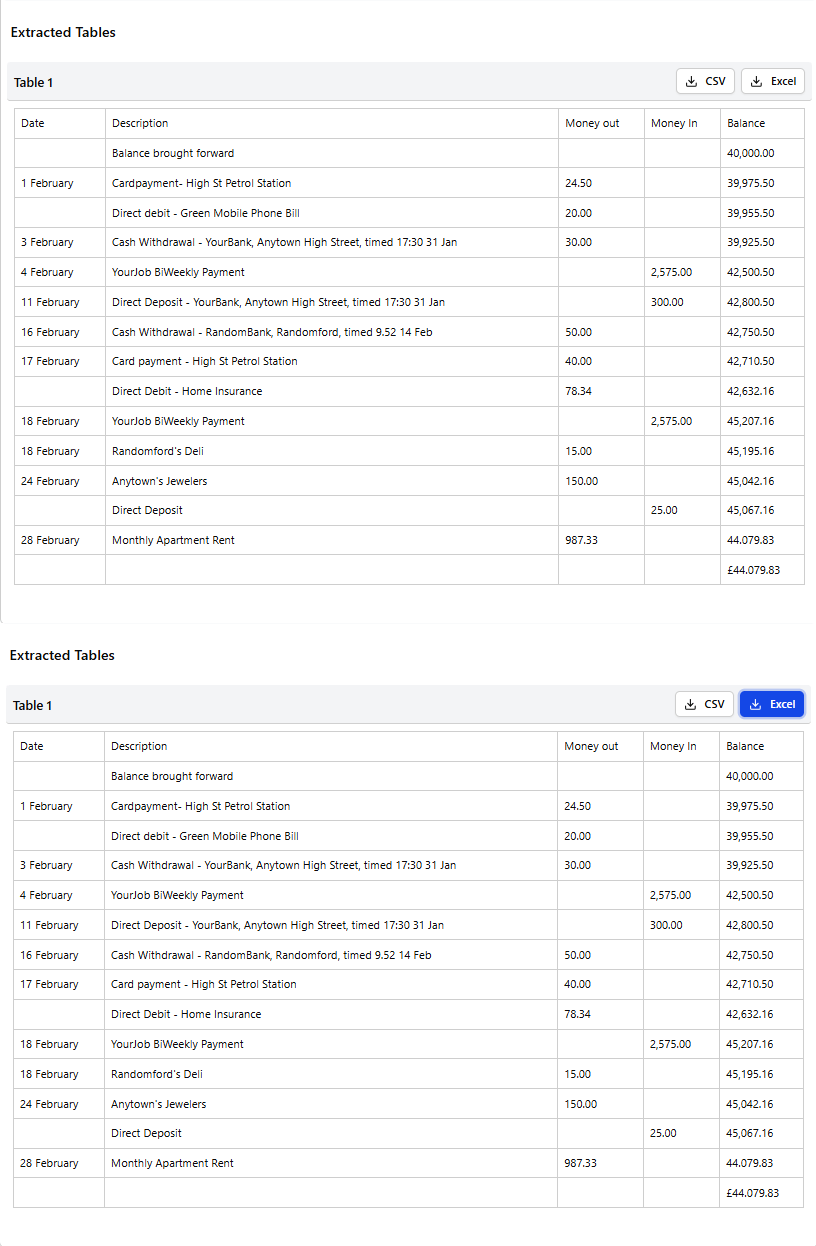
The task which would have taken normally 20 to 30 minutes (with chances of typo) to complete is done in less than a minute (without any typo)
You can sign up for free (no credit card required) and you will get 5 pages for free to check if this works for you.
Stop wasting hours on manual entry. Start your free trial at docinterpreter.com today and process your first 5 pages for free—no credit card required.
Ready to automate your data entry?
Process your first 5 pages for free — no credit card required. See results in minutes, not hours.
Get Started